India
India
 Singapore
How to Send Messages with the WhatsApp API: Templates, the 24-Hour Window and Interactive Messages
-
 By Smartping
- Oct 19, 2026
- WABA
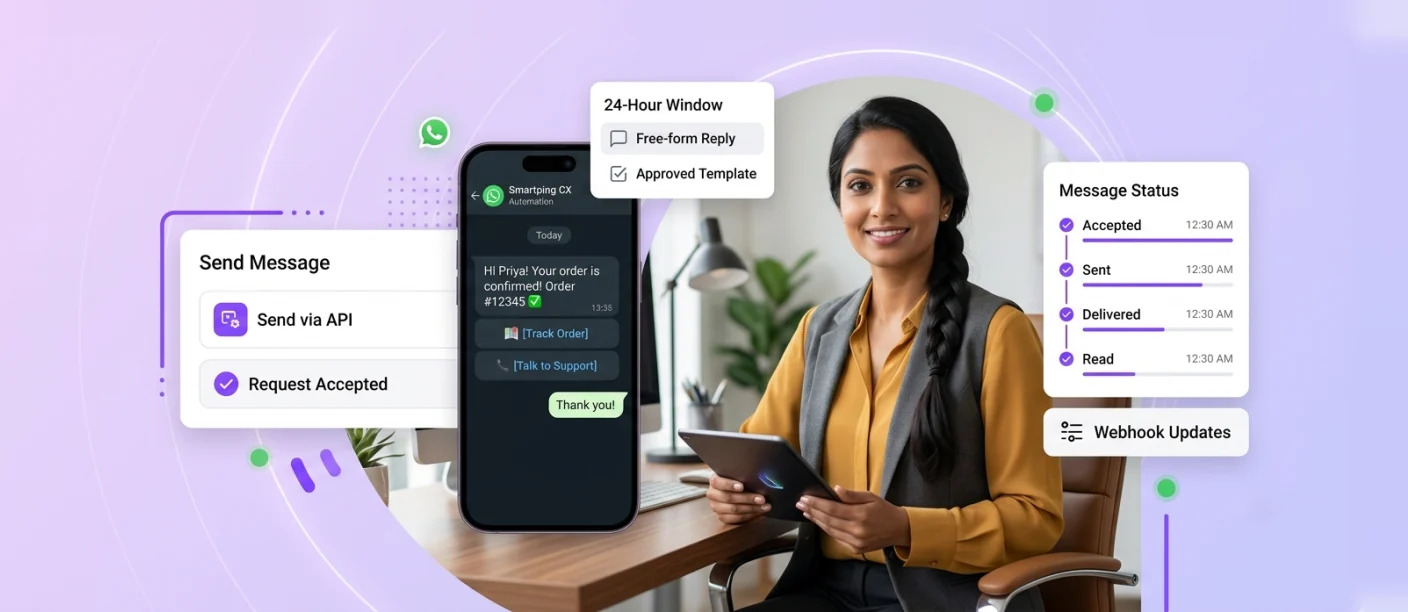
To send a message with the WhatsApp API, your system sends a request to Meta’s Cloud API specifying the recipient, the message type and its content. If the customer has messaged you in the last 24 hours, you can send free-form messages; otherwise, you must use an approved template. Meta delivers the message and reports its status (sent, delivered, read or failed) back to your system through webhooks.
This guide is for developers, marketing ops and CX managers setting up outbound and conversational messaging. Smartping is a Meta Business Partner offering WhatsApp business messaging for enterprises. If you’re building the integration yourself, start with our WhatsApp developer guide.
How the WhatsApp API Sends a Message
Every WhatsApp API message follows the same four-stage lifecycle:
1. Request: Your system (CRM, app backend, contact centre or provider platform) sends the message details to Meta’s messages endpoint for your business phone number.
2. Acceptance: Meta validates the request and returns a message ID. This confirms the request was accepted, not that the message was delivered.
3. Delivery: Meta delivers the message to the customer’s WhatsApp app.
4. Status updates: Meta sends webhook events to your system as the message progresses.
| Status | What It Means |
|---|---|
| Sent | The message has left Meta’s servers |
| Delivered | The message reached the customer’s device |
| Read | The customer opened it (if read receipts are enabled) |
| Failed | The message could not be delivered, with an error code explaining why |
Tracking these statuses is essential for reliable messaging, from retrying failures to measuring campaign performance. Our guide to WhatsApp webhooks (peer link) explains how to capture and process them.
The 24-Hour Customer Service Window
The 24-hour customer service window is the most important rule in WhatsApp API messaging. It opens whenever a customer sends your business a message and stays open for 24 hours from their latest message.
Inside the window: You can send any message type, including free-form text, media and interactive messages, without a template.
Outside the window: You can only send approved template messages. Templates are pre-written messages in one of three categories (marketing, utility or authentication) that Meta reviews before use. Our WhatsApp Business API complete guide explains template categories in detail.
Note that billing inside the window changed on 1 October 2026, when service replies beyond a monthly allowance and in-window utility templates became chargeable. See our guide to WhatsApp Business API pricing for details.
Decision Flow: Can I Send This Message Right Now?
Step 1: Has the customer opted in to receive WhatsApp messages from you?
No → Don’t send. Collect opt-in first.
Yes → Go to Step 2.
Step 2: Has the customer messaged you in the last 24 hours?
Yes → You can send any message type, free-form or template.
No → Go to Step 3.
Step 3: Do you have an approved template for this purpose?
Yes → Send the template in the correct category.
No → Create a template and submit it for approval before sending.
Step 4: Is the template category correct for the content?
Promotional content belongs in marketing templates. Transactional updates belong in utility. OTPs belong in authentication. Misclassified templates risk rejection or reclassification by Meta.
Want a quick reference for your team? Download the WhatsApp Message Type Cheat Sheet or talk to Smartping’s experts about your messaging setup.
Message Types You Can Send
| Message Type | What It Does | Typical Use |
|---|---|---|
| Text | Plain text, with optional link previews | Support replies, confirmations |
| Media | Images, videos, documents and audio | Invoices, tickets, product videos, brochures |
| Location | A map pin with address | Store directions, pickup points |
| Contacts | A shareable contact card | Assigned agent or relationship manager details |
| Reply buttons | Up to three tappable quick-reply options | “Confirm,” “Reschedule,” “Talk to agent” |
| List messages | A menu of up to 10 options | Product categories, service selection, FAQs |
| CTA URL buttons | A button that opens a website link | Track order, view ticket, complete payment |
Interactive messages, including reply buttons, lists and CTA URL buttons, typically outperform plain text because customers tap rather than type. Outside the 24-hour window, buttons can also be added to approved templates.
How to Send a Hyperlink in WhatsApp Using the Business API
There are two ways to share links:
1. Links in message text: Paste the full URL into a text message. Within the 24-hour window, you can enable a link preview so WhatsApp shows the page title and image. Previews depend on the destination page having proper preview metadata, and long or shortened URLs can look less trustworthy to customers.
2. CTA URL buttons: Attach a link to a labelled button, such as “Track your order” or “Download ticket.” The URL stays hidden behind clear button text, giving a cleaner, more trustworthy experience. In templates, URL buttons can include a dynamic suffix, so each customer receives a personalised link, for example to their own order page.
Which to use: CTA URL buttons for important actions such as payments, tracking and bookings; text links for informational content where a preview adds context.
Link Best Practices
1. Use your own branded domain wherever possible.
2. Avoid generic URL shorteners, which customers may treat as suspicious.
3. Make sure linked pages are mobile-friendly.
4. Track link clicks to measure engagement.
Aggregator and Ticketing Examples
Consumer platforms, aggregators and ticketing services in India, including apps such as BookMyShow, commonly use WhatsApp to share bookings and alerts. While each platform’s implementation is its own, a typical send API flow for a ticketing or aggregator business looks like this:
Booking confirmation: The moment payment succeeds, the backend triggers a utility template containing booking details, with a CTA URL button to view the ticket or a document attachment with the e-ticket.
Reminders: A scheduled utility template is sent a few hours before the event with venue location and entry instructions.
Changes and cancellations: If a show is rescheduled or cancelled, an alert is sent immediately to affected customers, with reply buttons for refund or rebooking.
Customer queries: When a customer replies, the 24-hour window opens, and a chatbot or agent handles questions with free-form and interactive messages.
Aggregators: Platforms sending on behalf of multiple merchants, such as food delivery, travel or service marketplaces, follow the same pattern, with templates parameterised for each merchant, booking or order.
How Industries Use the WhatsApp Send API
Retail and D2C: Order confirmations and shipping updates as utility templates, delivery tracking via CTA URL buttons, and product launches through image and carousel marketing templates. Shoppers can also complete purchases using WhatsApp in-chat payments.
BFSI: Login OTPs as authentication templates, transaction alerts and EMI reminders as utility templates, and statements or policy documents shared as media. Reply buttons let customers confirm, dispute or request a callback.
Healthcare: Appointment reminders with reply buttons to confirm or reschedule, lab reports shared as documents, and clinic locations sent as location messages.
EdTech: Admission updates, class schedules and fee reminders as utility templates, course options in list messages, and counsellor details shared as contact cards.
Travel and hospitality: Booking confirmations, boarding passes and itineraries as documents, check-in reminders with CTA URL buttons, and real-time alerts for delays or changes.
Logistics: Dispatch and delivery updates, delivery slot selection via list messages, and proof-of-delivery images shared as media.
Automotive: Service reminders, booking confirmations with workshop locations, and test drive scheduling through reply buttons.
Delivery Failures and Fixes
When a message fails, Meta returns an error code in the webhook or API response. Common ones include:
| Error Code | What It Means | How to Fix It |
|---|---|---|
| 131047 | More than 24 hours have passed since the customer’s last message | Send an approved template instead of a free-form message |
| 131026 | The message couldn’t be delivered, for example the number isn’t on WhatsApp or the customer hasn’t accepted updated terms | Verify the number and don’t retry repeatedly |
| 132001 | The template doesn’t exist or isn’t approved in that language | Check the template name and language code |
| 132000 | The number of template variables doesn’t match | Send exactly the number of variables the template expects |
| 131049 | Meta chose not to deliver a marketing message to maintain a healthy experience for the user | Reduce marketing frequency to that user and improve targeting |
| 131050 | The user has stopped receiving marketing messages from your business | Respect the opt-out and remove them from marketing campaigns |
| 130429 | Your throughput rate limit was exceeded | Pace sends and retry with backoff |
Opt-out handling: When a customer opts out, by replying “Stop” or using an opt-out button, update every system that sends WhatsApp messages immediately. Continuing to message opted-out customers drives blocks and reports.
Quality impact: Repeated failures to invalid numbers, high block rates and irrelevant messages can lower your quality rating, which affects your ability to scale messaging limits. Clean contact data and consent-led messaging protect delivery over time.
Frequently Asked Questions
1. Can I send messages to users who haven’t messaged me?
Yes, but only using approved template messages, and only to users who have opted in to receive WhatsApp messages from your business. For high-volume outreach, follow compliant WhatsApp bulk messaging practices.
2. Can I schedule WhatsApp API messages?
Meta’s API sends messages when requested, so scheduling is handled by your own system or your provider’s campaign tools, which trigger the send at the chosen time.
3. Is there a character limit for WhatsApp API messages?
Yes. Text messages can be up to 4,096 characters, and template bodies up to 1,024 characters. Interactive elements such as button labels have much shorter limits.
4. Can I send a hyperlink in a WhatsApp template?
Yes. Links can be included in template text or, more effectively, in a CTA URL button, which can carry a personalised dynamic link.
5. What happens if a message fails?
Meta returns a failed status with an error code. Use the code to decide whether to fix the content, switch to a template, retry later or stop messaging that user.
6. Do I need a template to reply to a customer?
Not within 24 hours of the customer’s last message. During that window, free-form replies are allowed.
Send the Right Message, the Right Way
Reliable WhatsApp API messaging comes down to three rules: respect the 24-hour window, use the right template category for business-initiated messages, and choose message types that make it easy for customers to act. Pair these with clean data, opt-in management and status tracking, and every message becomes more likely to be delivered, read and acted on.
Talk to Smartping’s experts to set up WhatsApp business messaging for your team.

Enable businesses to forge enduring connections with their customers through multiple channels.
Latest Blogs
-
Smartping at World AI Summit 2026: AI Voicebot and WhatsApp AI Chatbots for Enterprises
Bengaluru, 21 October 2026: Smartping, a Meta Business Partner and enterprise communication platform, showcased its AI Voicebot and WhatsApp AI...
Read More
-
WhatsApp Ads Guide: How to Run Click-to-WhatsApp Campaigns in Ads Manager and Convert Chats into Leads
WhatsApp ads are Click-to-WhatsApp ads: Facebook and Instagram ads with a “Send WhatsApp Message” button that opens a chat with...
Read More
-
WhatsApp Business Marketing at Enterprise Scale: From Broadcasts to Customer Engagement
WhatsApp Business marketing at enterprise scale means using the official WhatsApp Business Platform to run personalised, permission-based campaigns and two-way...
Read More

Share


Related Blogs & Articles
Smartping at World AI Summit 2026: AI Voicebot and WhatsApp AI Chatbots for Enterprises
Bengaluru, 21 October 2026: Smartping, a Meta Business Partner and enterprise communication platform, showcased its AI Voicebot and WhatsApp AI...
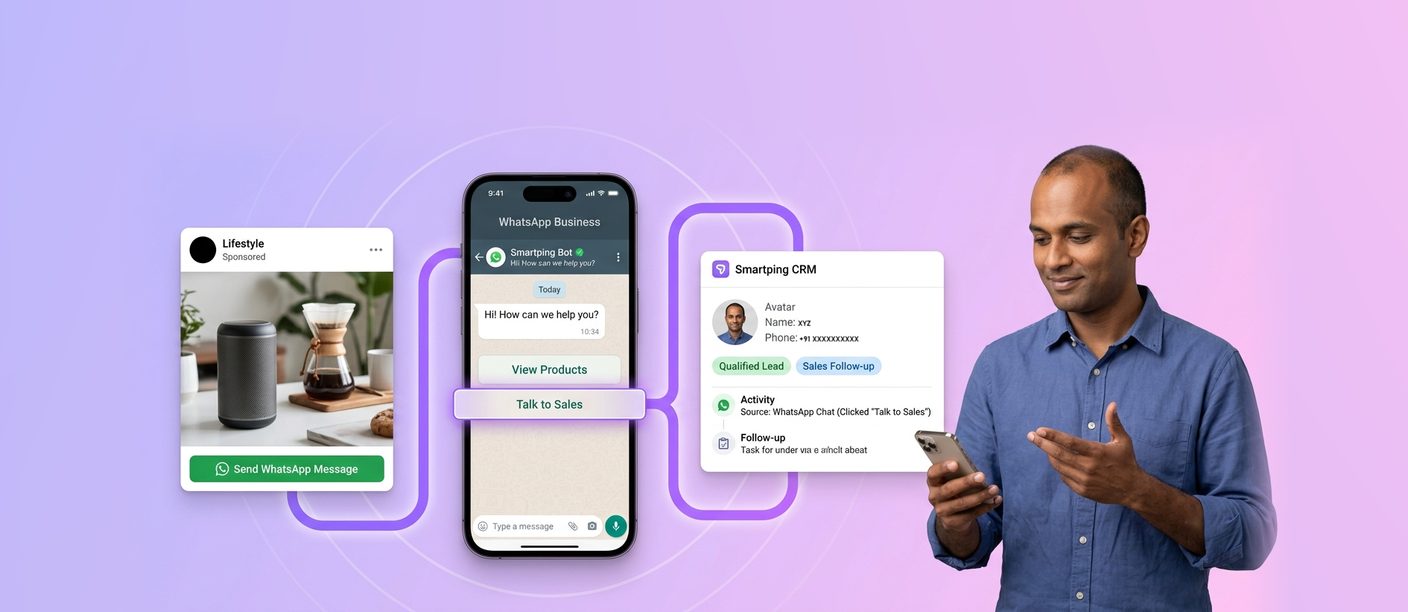
WhatsApp Ads Guide: How to Run Click-to-WhatsApp Campaigns in Ads Manager and Convert Chats into Leads
WhatsApp ads are Click-to-WhatsApp ads: Facebook and Instagram ads with a “Send WhatsApp Message” button that opens a chat with...
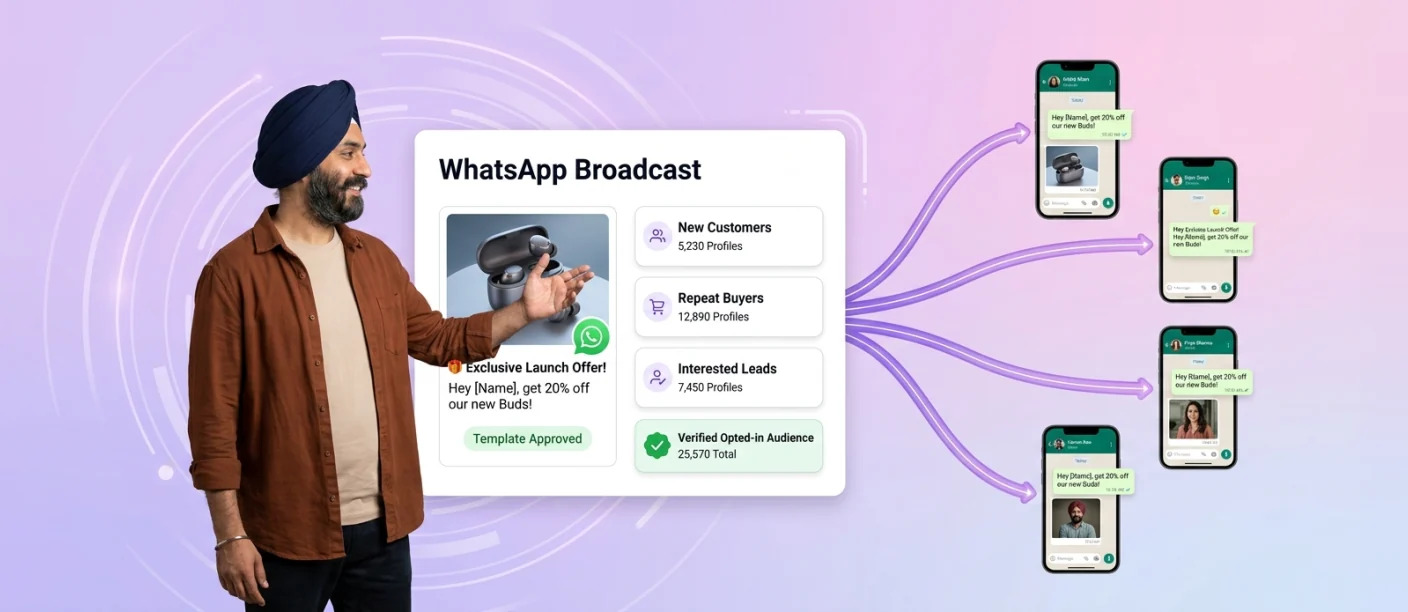
WhatsApp Business Marketing at Enterprise Scale: From Broadcasts to Customer Engagement
WhatsApp Business marketing at enterprise scale means using the official WhatsApp Business Platform to run personalised, permission-based campaigns and two-way...
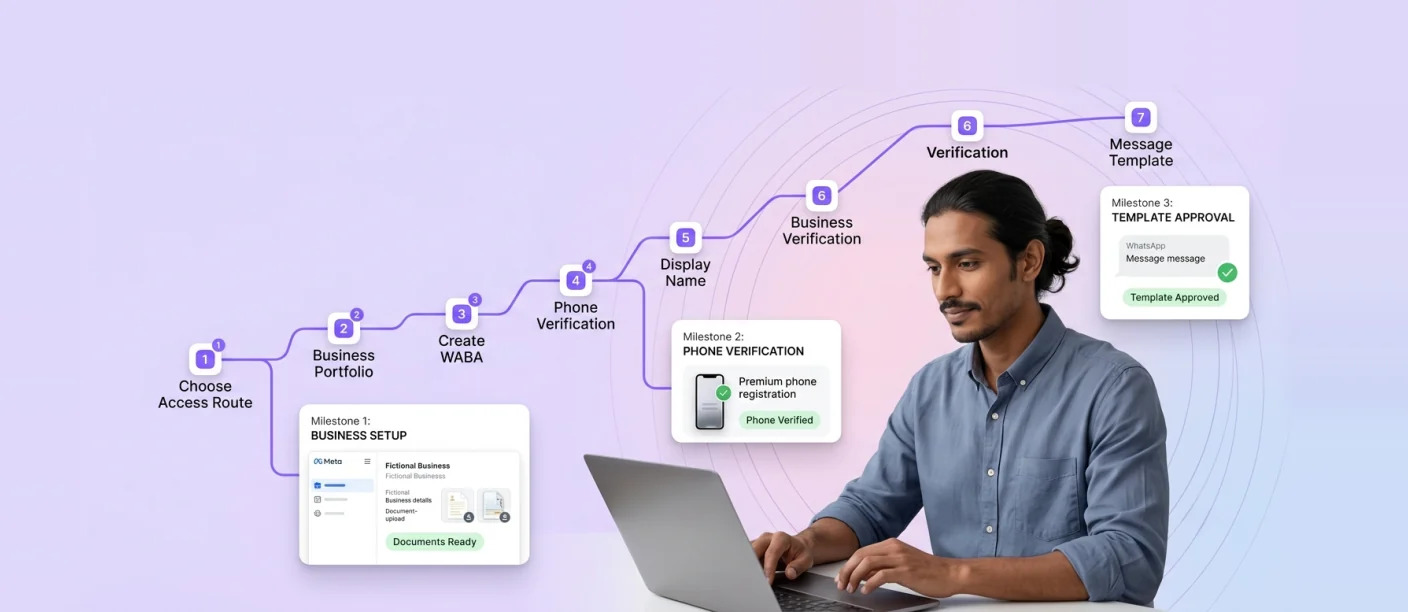
WhatsApp Business API Application: Step-by-Step Approval, Verification and Eligibility Guide (India)
A WhatsApp Business API application involves setting up a Meta Business Portfolio, creating a WhatsApp Business Account, registering a dedicated...
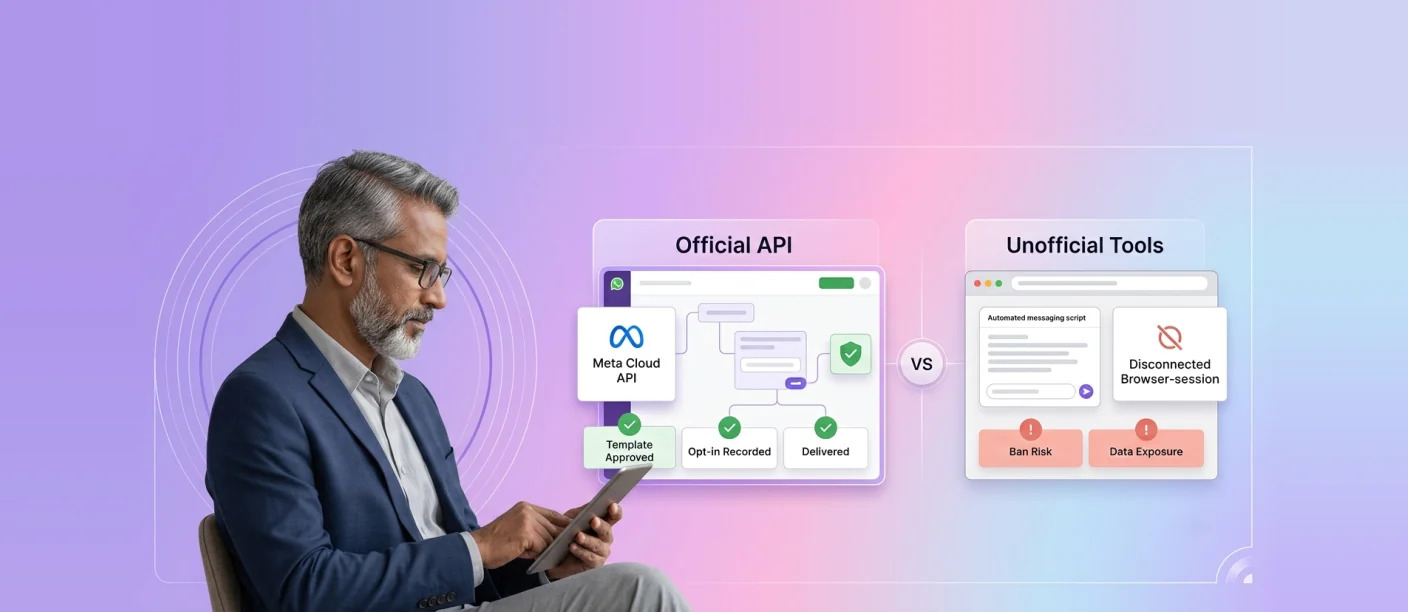
Official Meta WhatsApp API vs Unofficial WhatsApp Tools: Ban Risks, Compliance and How to Choose
The Meta WhatsApp API, officially part of the WhatsApp Business Platform, is the only sanctioned way for businesses to send...
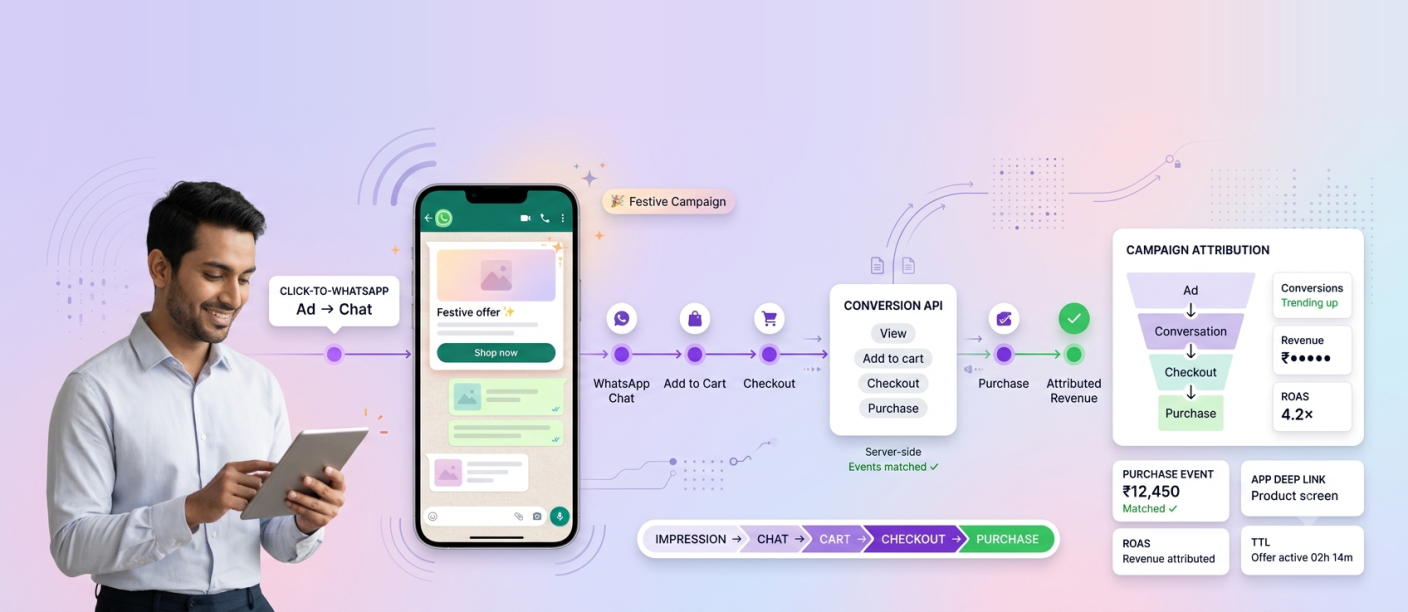
How Can WhatsApp Conversion API Improve Attribution During Festive Commerce Campaigns?
WhatsApp Conversion API improves festive campaign attribution by sending downstream business events, such as add-to-cart, checkout and purchase, back to...




 First Floor, Unit F-49, Sector-47, Spaze Boulevard, Gurugram, Haryana 122018